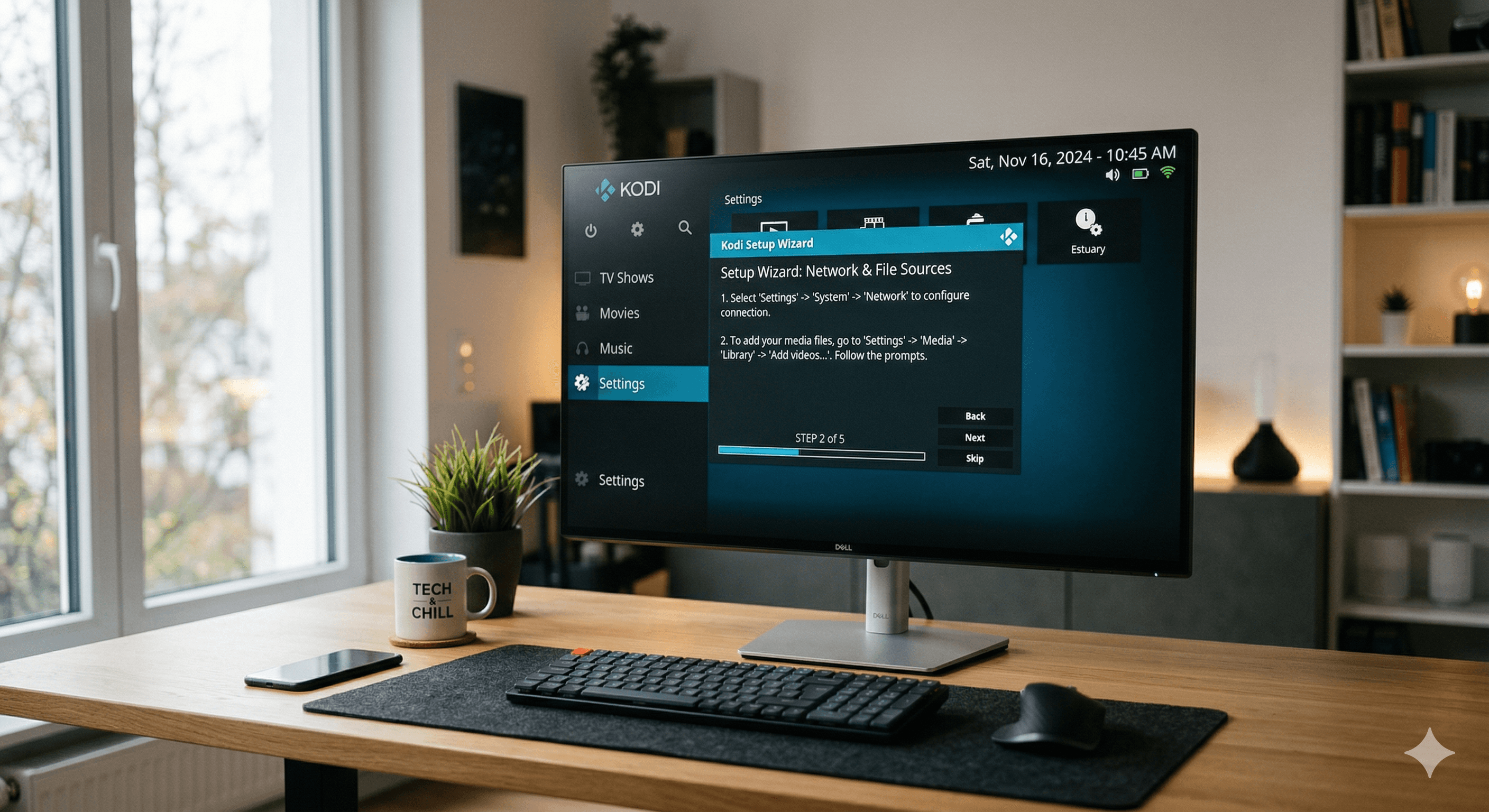
How to Set Up IPTV on Kodi: Complete Walkthrough
Kodi is one of the most powerful free media centers available, and setting up IPTV on Kodi transforms it into a full live TV platform. Using the built-in PVR IPTV Simple Client add-on, you can load your M3U playlist and get live channels, an EPG guide, and on-demand content — all inside Kodi's clean interface.
This guide covers everything from installing the add-on to troubleshooting common issues.
What You Need
- Kodi 20 (Nexus) or Kodi 21 (Omega) installed on your device
- An M3U playlist URL from your IPTV provider
- An EPG URL (optional but recommended — your provider should supply this)
- A stable internet connection — 10 Mbps minimum for HD
Get your IPTV subscription with M3U playlist URL — includes EPG and instant activation.
Step 1: Enable the PVR IPTV Simple Client
The PVR IPTV Simple Client is built into Kodi — you just need to enable it. There's nothing to download.
- Open Kodi
- Go to Settings (gear icon)
- Select Add-ons
- Click "My add-ons"
- Scroll to PVR Clients
- Find PVR IPTV Simple Client
- Click it and select "Enable"
Step 2: Configure Your M3U Playlist
Once enabled, you need to point the add-on to your IPTV playlist.
-
From PVR IPTV Simple Client, click "Configure" (or go back to Add-ons → PVR Clients → PVR IPTV Simple Client → Configure)
-
Under the General tab, find M3U Playlist URL
-
Select "Remote Path (Internet Address)" from the dropdown
-
Paste your M3U playlist URL — it will look something like:
http://yourserver.com:8080/get.php?username=USER&password=PASS&type=m3u_plus -
Click OK to save
Step 3: Add Your EPG (TV Guide)
An EPG (Electronic Programme Guide) shows what's currently on and what's coming up — essential for live TV.
-
In the PVR IPTV Simple Client settings, go to the EPG Settings tab
-
Set XMLTV URL to your EPG URL (provided by your IPTV service after subscribing)
-
Set EPG cache to 2 days for smooth performance
-
Click OK
Step 4: Enable the PVR Backend in Kodi
After configuring the add-on, Kodi needs to activate the PVR backend.
- Go back to the Kodi home screen
- You should see a notification: "PVR manager started" — if so, you're good
- If not, go to Settings → PVR & Live TV → ensure "Enabled" is toggled on
- Click "Channels" to force a rescan
Step 5: Access Your Live TV Channels
- From the Kodi home screen, select "TV" from the main menu
- Choose "Channels" to browse all your live channels
- Select "Guide" to see the EPG programme schedule
- Navigate to any channel and press Play
Your channels are now organized by category (Sports, News, Entertainment, etc.) based on how your M3U playlist is structured.
Navigating Kodi's Live TV Interface
The EPG Guide
Press "Guide" from the TV menu to open the full programme guide. Use arrow keys to navigate by time and channel. Press OK/Enter on a show to watch it live or record it (if you've configured a PVR backend).
Favorites
While watching a channel, press the "C" key (or Menu button on remote) to add it to favorites. Access favorites quickly from the TV menu.
Channel Groups
If your provider organizes channels into groups (e.g., "UK Sports", "US Channels"), you can filter by group in the Channels view.
Improving IPTV Performance in Kodi
Use the Right Video Player
Kodi defaults to its own player, which works for most streams. For 4K IPTV content, go to:
- Settings → Player → Videos
- Enable "Hardware acceleration" (DXVA2 on Windows, AMLogic on Android boxes)
Adjust Buffering
Kodi uses a advancedsettings.xml file for buffer control. To increase buffer size:
- Navigate to your Kodi user data folder:
- Windows:
C:\Users\[name]\AppData\Roaming\Kodi\userdata\ - Android:
/Android/data/org.xbmc.kodi/files/.kodi/userdata/
- Windows:
- Create or edit
advancedsettings.xml - Add:
<advancedsettings>
  <cache>
    <buffermode>1</buffermode>
    <memorysize>157286400</memorysize>
    <readfactor>4</readfactor>
  </cache>
</advancedsettings>
This sets a 150MB buffer, which handles most network hiccups.
Troubleshooting IPTV on Kodi
Channels Not Appearing
- Check the M3U URL is correct and accessible in a browser
- Force a channel rescan: Settings → PVR & Live TV → Channels → Refresh
- Disable and re-enable the PVR IPTV Simple Client add-on
EPG Not Loading
- Verify your EPG URL is correct
- In add-on settings, click "Clear EPG cache" then restart Kodi
- Check your EPG URL in a browser — it should download an XMLTV file
Buffering During Playback
- Enable hardware acceleration in player settings
- Increase buffer size using
advancedsettings.xml(see above) - See our full guide: How to Fix IPTV Buffering
Add-on Shows as "Broken"
- Update Kodi to the latest version
- Re-enable the PVR IPTV Simple Client from Add-ons → My add-ons
Kodi IPTV vs Dedicated IPTV Apps
| | Kodi + PVR | IPTV Smarters / TiviMate | |--|-----------|--------------------------| | Setup difficulty | Medium | Easy | | Interface quality | Good | Excellent | | Customization | Very High | Medium | | Other media (local files, streaming) | ✅ Full media center | ❌ IPTV only | | Cost | Free | Free / $5 |
Kodi is the right choice if you want a single app for all your media — local files, streaming services, and live IPTV. If you only need IPTV, a dedicated app like TiviMate is simpler to set up.
Once you've set up IPTV on Kodi, you'll have 1000+ live channels, a full EPG guide, and seamless integration with your other media. Get your M3U playlist and credentials here and be watching in under 15 minutes.
Share this article